
For most conversions, use BOQ‑optimised OCR: it reads construction tables and pricing columns properly, so bulk or scanned Bills of Quantities come through with the hierarchy intact. If you have a small, clean digital BOQ, a structured Excel template will do the job just as well. Either way, the immediate action is simple: open the source file now and check whether it's scanned or digitally native, because that decides which route you take. BOQ‑aware OCR engines typically claim accuracy in the high nineties on structured tables, and most platforms, including QuantiFlow, offer free credits or a trial run before you commit to anything.
Key Takeaways
BOQ‑optimised OCR handles bulk or scanned Bills of Quantities more reliably than generic converters, while structured Excel templates remain the better fit for small, clean digital jobs.
| Point | Details |
|---|---|
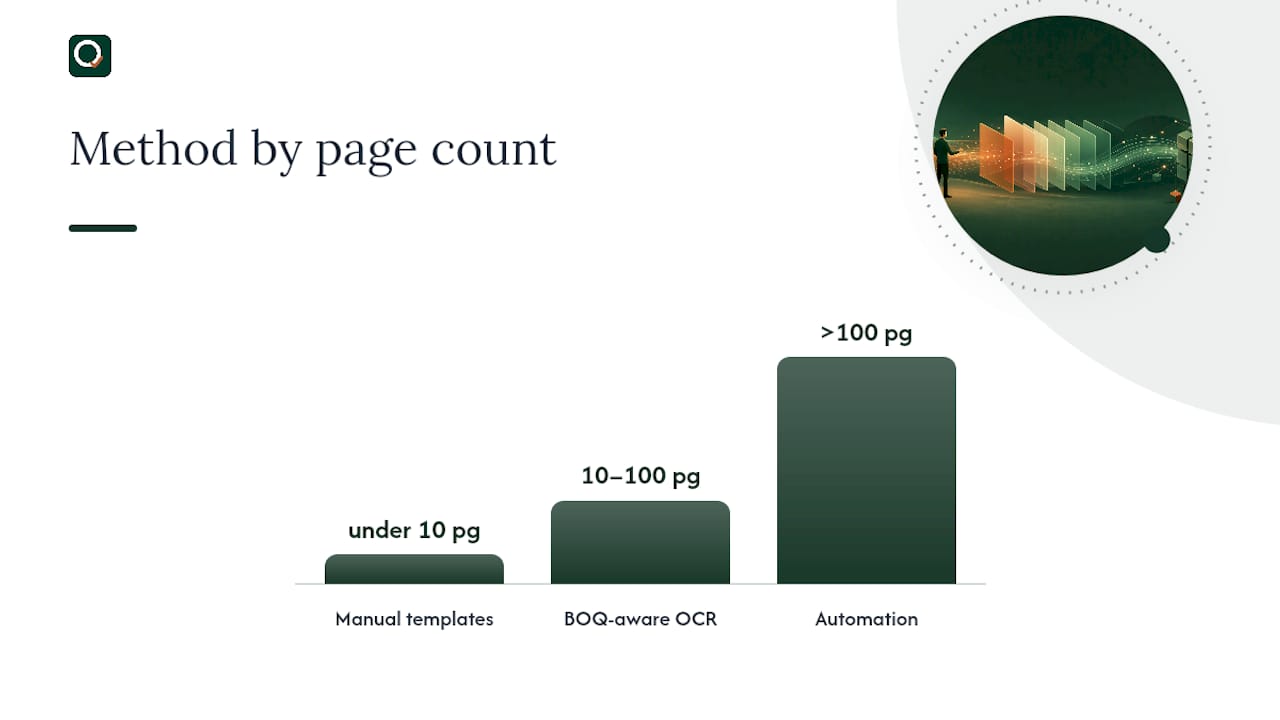
| Match method to volume | Use manual templates under 10 pages, BOQ‑aware OCR for 10 to 100 scanned pages, automation above that. |
| Validate before pricing | Reconcile every section total against the tender collection sheet before touching Rate or Amount. |
| Fix structure, not numbers | Mismatched totals usually mean a hierarchy fault, not a rounding error. |
| Save mapping templates | Reusable column maps and grouping rules cut manual fixes on repeat conversions. |
| Automate with QuantiFlow | QuantiFlow extracts NRM2‑aligned quantities from PDFs and exports straight to Excel with formulas and audit logging intact. |
Table of Contents
- Quick methods to get a BOQ from PDF into Excel
- How do you convert a BOQ to Excel step by step?
- What structure should a BOQ have in Excel?
- Which tools actually convert a BOQ well?
- Why do BOQ conversions go wrong?
- Manual, automated, or outsourced: how do you choose?
- Try QuantiFlow for automated BOQ conversion
- Where to go next for templates and tools
- Frequently asked questions
- Sources
Quick methods to get a BOQ from PDF into Excel
Your choice of method should depend on volume, scan quality, and how much time you've got before the tender deadline.
- Manual typing with a template: slow, but fully accurate for under 10 pages of clean data. Best for small, one-off jobs.
- Copy-paste into Excel: fast for digitally native PDFs, though it usually scrambles column alignment. Use only when the source PDF has selectable text.
- Excel macros and templates: good for repeat formats you see often, once a mapping template exists. Turnaround is near-instant after setup.
- Generic PDF-to-Excel converters: quick, but they routinely break table structure and misread numeric columns on anything but the simplest layout.
- BOQ‑optimised OCR: built to recognise construction tables, unit columns and section headers, so it handles scanned or low-quality PDFs far better than generic tools.
- Outsourced conversion services: hands-off, with human review included, but turnaround runs from a day to a week depending on volume and complexity.
For high-volume archive conversion or urgent tenders with poor scan quality, BOQ‑aware OCR or an automated platform beats manual effort every time.
How do you convert a BOQ to Excel step by step?
Getting from PDF to a priceable spreadsheet is a sequence, not a single click. Skip a step and you'll spend longer fixing errors than you saved converting the file.
Preparation first:
- Gather every source file, including addenda and revision pages.
- Locate the collection or summary sheet. You'll need it later to validate totals.
- Decide upfront which columns stay blank. Rate and Amount should remain empty until quantities are confirmed.
Then run the conversion sequence:
- Upload the PDF to your OCR tool or import it into your Excel template.
- Inspect the row and section hierarchy against the original document.
- Unmerge any merged cells and fix numeric fields that have imported as text.
- Apply formulas and pull rates from your rate library rather than typing values manually.
- Reconcile section totals against the collection sheet.
Validation checklist before pricing begins:
- Do section totals match the original collection sheet?
- Are unit columns (m², m³, No, kg) consistent throughout?
- Are all quantity fields genuinely numeric, not text strings that look like numbers?
- Have Rate and Amount columns been left blank until quantities are verified?
Pro Tip: Treat Rate and Amount as placeholders, not fields to fill in as you go. Populating them before quantities are reconciled means re-checking every price when a hierarchy error surfaces later.
What structure should a BOQ have in Excel?
Five rules separate a priceable Excel BOQ from a spreadsheet that looks tidy but breaks the moment someone tries to price it.
- One row per measured item, with consistent units throughout the sheet. Mixing m² and m in the same column is how pricing errors creep in unnoticed.
- Preserve the work hierarchy. Use Excel's grouping feature or a code column to keep work section, work group, and item level distinct, so the sheet mirrors the original document's logic.
- Separate preliminaries, measured work, provisional sums, and dayworks into their own sections. Merging them makes collection totals impossible to check.
- Leave Rate and Amount blank until quantities are verified, and use formulas rather than hard-typed values for anything derived, so a correction upstream flows through automatically.
- Reconcile every work section against the tender collection sheet. A mismatch almost always points to a hierarchy or grouping fault rather than a rounding issue.
Microsoft's own guidance on building a BOQ format in Excel covers the layout conventions behind rules one and two in more depth, and it's worth a look if you're building a template from scratch. These structural habits also carry over well when setting out quantities for residential projects, where section discipline matters just as much on smaller jobs.
Which tools actually convert a BOQ well?
Five categories cover almost every conversion scenario you'll face, and each has a clear sweet spot.
- Manual templates: highest control, lowest speed. Right for small, clean jobs where accuracy matters more than turnaround.
- Generic PDF converters: fast but unreliable on construction tables, since they weren't built to recognise BOQ formatting. Generic tools often break table structure and scramble numeric columns, leaving far more manual cleanup than a BOQ‑aware alternative.
- BOQ‑optimised OCR: purpose-built to read construction terminology and table layouts, which is why it handles scanned and low-quality PDFs so much better than generic software.
- Revit or BIM exporters: where a model already exists, tools like UnoTool BOQExtraction or BoQExport pull quantities directly from element metadata, avoiding OCR risk entirely.
- Outsourced services: best when internal capacity is the bottleneck rather than accuracy.
For most SME quantity surveyors converting drawings or scanned tenders rather than working from a live Revit model, an automated BOQ‑aware platform is the more practical route. QuantiFlow builds on this by aligning output to NRM2, exporting straight to Excel with formulas intact, pulling from a live UK rate library, and logging every revision for audit purposes across Solo, Business, and Enterprise tiers. If your scope is small or your data already lives in a Revit model, a template or a Revit exporter remains the simpler choice.
Why do BOQ conversions go wrong?
Most conversion failures trace back to five recurring issues, and each has a quick fix.
- Broken table rows: a row splits across a page boundary during OCR. Fix by inspecting page breaks first and reassembling split rows manually or via a template rule.
- Numbers read as text: quantities import as text strings, so formulas silently fail. Use
=VALUE(TRIM(CLEAN(A2)))to strip hidden characters and convert to a true number. - Merged cells: common in section headers, and they break sorting and formulas. Unmerge, then use a helper column to copy the header value down to every row it should apply to.
- Missing section headings: OCR sometimes drops a heading row entirely. Restore hierarchy using a code column mapped back to the original document's section numbering.
- Misplaced unit columns: units shift into the wrong column when table width varies across pages. An
IFcheck comparing expected unit text (m², m³, No) against the cell contents flags mismatches fast.
Manual, automated, or outsourced: how do you choose?
Match the method to three variables: page count, scan quality, and how repeatable the work is.
- Under 10 pages, clean digital PDF: manual entry into a template is fast enough and gives full control.
- 10 to 100 scanned pages: BOQ‑optimised OCR is the sweet spot, balancing speed against the accuracy scanned documents demand.
- Over 100 pages, or work you'll repeat across projects: an automated platform or outsourced service pays for itself in saved hours, particularly once you save a mapping template for reuse.
- Tight tender timescale with limited internal staff: lean towards automation or outsourcing rather than stretching your own team thin.
Cost and accuracy trade off against each other at every threshold. A free trial credit on an automated platform is the lowest-risk way to test whether it clears your accuracy bar before you commit to a full subscription or a service contract.
A note on where conversions actually fail
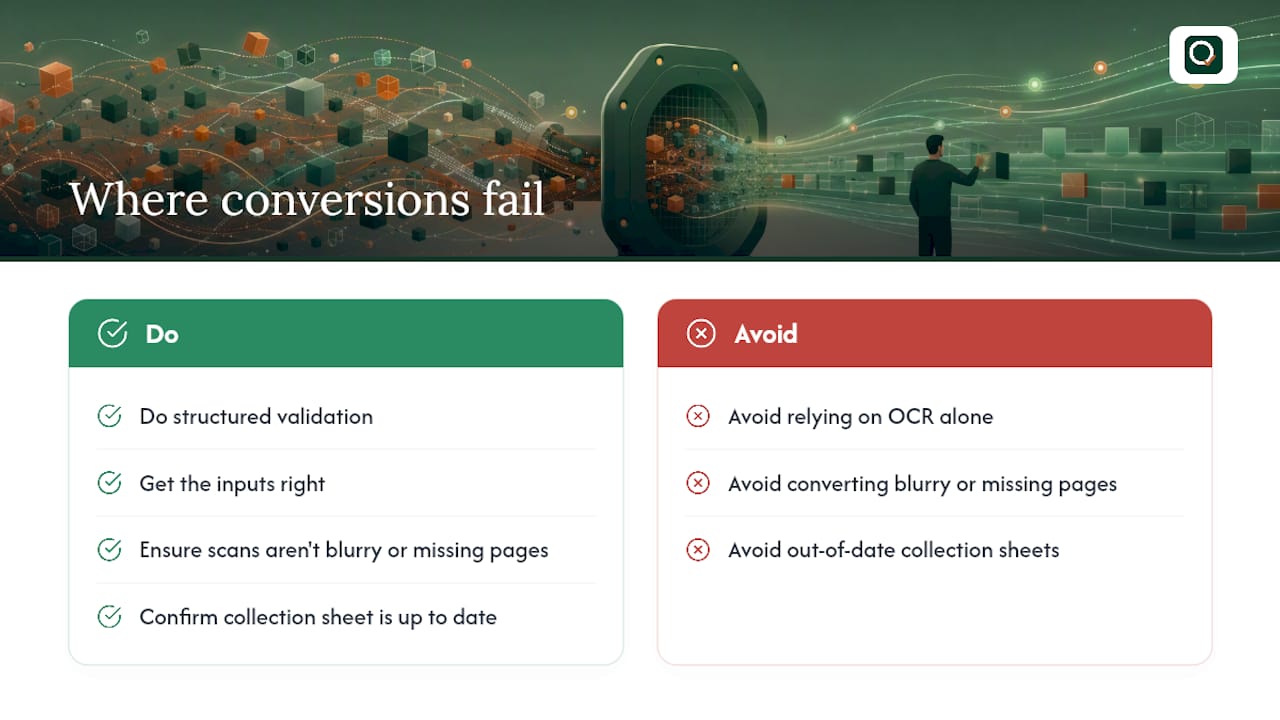
Structured validation matters more than the conversion tool itself. A scanned BOQ that's blurry or missing pages will defeat even the best OCR, just as a collection sheet that's out of date will make a perfectly accurate extraction look wrong. Get the inputs right and the output follows.
Try QuantiFlow for automated BOQ conversion
QuantiFlow turns the workflow above into something closer to a few clicks than a few hours. Upload a PDF drawing set and it extracts quantities using BOQ‑aware AI, cross-references them against the drawing, and aligns the output to NRM2 structure automatically.
Here's what that means in practice for the sections above:
- NRM2‑aligned extraction that preserves work section, work group, and item hierarchy without manual code mapping.
- Excel export with formulas intact, so Rate and Amount populate from a live UK rate library once you've verified quantities.
- Audit trail and revision logging across every change, useful when a collection total needs tracing back to source.
- Tiered plans from Solo at £39/month to Business at £149/month, with custom Enterprise pricing for larger firms.
Uploaded PDFs are processed securely, and most conversions return a structured takeoff well within the timescale of a manual rebuild. If you've got a stack of scanned tender documents sitting in a folder, start a free trial at QuantiFlow and run one through before your next pricing deadline.
Where to go next for templates and tools
Start with Microsoft's BOQ format guidance if you're building a template from scratch. If you're working from a Revit model, check BoQExport for chapter-based exports. For an automated OCR trial, visit QuantiFlow directly.
Frequently asked questions
Can I export a BOQ to PDF and then back to Excel without losing formatting? Exporting a BOQ to PDF for tender issue is standard practice, but reversing it loses formatting almost every time unless you use BOQ‑aware OCR built to recognise construction table structure specifically.
What's the best PDF to BOQ software for scanned tender documents? BOQ‑optimised OCR tools that read construction terminology and table layouts outperform generic PDF converters on scanned documents, since they're built to recognise unit columns and section hierarchy rather than plain text blocks.
How do I create a BOQ in Excel from scratch? Set up one row per measured item, group rows by work section using Excel's outline feature or a code column, and keep preliminaries, measured work, and provisional sums in separate sections before you add any pricing formulas.
Why do my converted quantities not match the collection sheet totals? A mismatch almost always signals a hierarchy or grouping error in the conversion, not a rounding issue. Recheck how rows were mapped to sections before assuming the numbers themselves are wrong.
Is it worth outsourcing BOQ conversion instead of doing it in-house? Outsourcing suits firms short on internal capacity or facing a large one-off conversion, but for repeatable work across projects, an automated platform with saved mapping templates usually proves more cost-effective over time.